Cerbo help needed

show us the SOC on the roamer APP and the CerboGX screen.

FWIW - you can recalibrate the SOH by fully discharging the battery till it shuts down - then doing a full 100% charge.

that lost capacity is not the battery after 17 cycles - it just needs a full drain down and full recharge so the BMS can see a full 230ah charge go into the battery.

id imaging as its so new - you havent done a full drain down - full recharge yet?

@RoamerBatteries
Certainly done full recharges, never taken the Roamer lower than 50%.
 
Certainly done full recharges, never taken the Roamer lower than 50%.
yep - well do that run it down to bellow 0% and it will shut down.

then give it the full 230ah recharge and your capacity should reset back to the 230Ah.

you only need to do this occasionally is the SOC readings drift.

as you battery is new. . . its worth doing so the calibration is set for your actual install.


..


i might do this maybe once a year if the readings look a bit off.


..


FYI - lithiums should not be run flat . . and LEFT flat. - they will be damaged.

BUT

a full discharge with immediate recharge cycle is perfectly fine, - and sometimes required to reset/recalibrate the internal BMS.
 
yep - well do that run it down to bellow 0% and it will shut down.

then give it the full 230ah recharge and your capacity should reset back to the 230Ah.

you only need to do this occasionally is the SOC readings drift.

as you battery is new. . . its worth doing so the calibration is set for your actual install.


..


i might do this maybe once a year if the readings look a bit off.


..


FYI - lithiums should not be run flat . . and LEFT flat. - they will be damaged.

BUT

a full discharge with immediate recharge cycle is perfectly fine, - and sometimes required to reset/recalibrate the internal BMS.
Best way to run flat? Gently leaving the inverter on, or getting the wife to boil full kettles of water on the induction hob?!
 
Best way to run flat? Gently leaving the inverter on, or getting the wife to boil full kettles of water on the induction hob?!
Run it down with kettle or fan heater to 10%


Then ease off to a smaller load.... Or you will get a false 0% due to the high load volt drop.

Id go for a big load down to 10%, then a smaller load. Say 10/20A ... 100-200w for the last 10%.

That should see it properly empty.


...
Then plug in your EHU charger and recharge.

A 10A charger will take 23hrs to charge.

A 50A charger will 5hrs to charge.

(Quick maths for a rough time guess)
 
This could be the issue....

You have two sources for battery data feeding the GX..... The Roamer battery direct, and the Vic shunt....

There is a setting in the GX where you have to choose the correct device.... There will be the roamer/shunt/auto

You should select the Roamer battery for the most accurate reading.
Hi Lee,
That’s me trying to sort this out now after it’s finally stopped raining.
I’ve removed the shunt and I’m trying to find the options of shunt/roamer etc in the Cerbo settings but can’t find it.
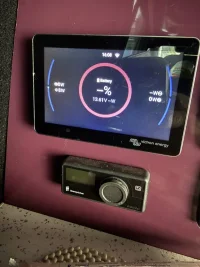
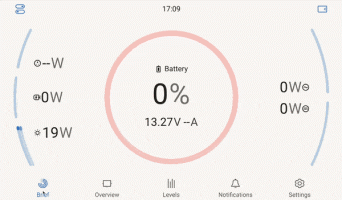
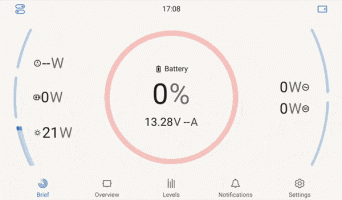
My Cerbo screen now looks like this.
Any help is appreciated guys
Cheers.
Also found that my EHU is not working. Which means no microwave or my mains charger working.
This will need further investigation
IMG_8444.webp
 

SMART4 and SMART5 connection with Victron GX devices​

Edited 4 months ago
We've made a quick and easy guide to show you how to get your new SMART4 / SMART5 battery connected ot a victron GX device. This includes the Cerbo-GX, Cerbo-GX MK2, Cerbo-S GX, Ekrano GX MultiPlus-II GX and EasySolar-II GX.


https://support.roamer.com/en/articles/1882562#getting_started

Getting Started​

For this guide, you'll simply need:

  1. Roamer SMART4 / SMART5 battery
  2. Victron GX Device
  3. Roamer to Victron GX CANbus cable
  4. CAN Terminator (these come with your Victron GX device)
  5. Smartphone with Roamer SMART App


https://support.roamer.com/en/articles/1882562#battery_connectors

Battery Connectors:​

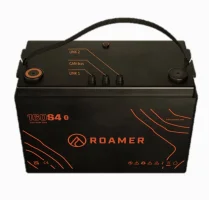
3ab3d333-21a2-4582-93b9-f6f8a68b615b.webp

From left to right, the connectors on the battery are Link, CANbus and another "Link".
This means that whichever way you are facing the battery, the outer connectors are the Link connections and the inner is the CANbus.
To connect to the GX device, we will use the inner, CANbus connection.
The connectors on the battery are all M12 female threaded. This ensures a secure connection with the cables.


https://support.roamer.com/en/articles/1882562#connecting_cables

Connecting Cables:​

https://support.roamer.com/en/articles/1882562#battery_end

Battery End​

When connecting any cables to the battery, ensure the battery is first powered off.

Next, take your Roamer to Victron GX CANbus cable, and line up the slot inside the M12 connector with the slot on the connector in the battery, the cable should point towards the middle of the battery.
Push the cable gently down into the connector, and then turn the metal collar clockwise to screw the connector in place - keep pushing gently whislt you do this, as the process of screwing the collar into the connector will pull the connection in, making for a snug fit.


https://support.roamer.com/en/articles/1882562#gx_device_end

GX Device End​

Take the other end of your Roamer to Victron GX CANbus cable, and plug the "Ethernet" plug into the BMS-CAN port of your GX Device. In the adjacent port, plug ina. CAN terminator.
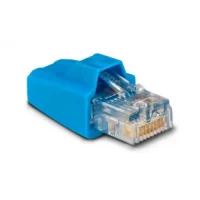
The CAN terminators come with your GX device and look like this:

396a4c0c-94a6-4023-a168-428af61f8cd7.webp

Now turn the Roamer SMART4 / SMART5 battery on via the power switch on the top of the case.

That's it, you're all set up and monitoring your Roamer SMART4 / SMART5 battery via your Victron GX Device!

If you have a GX device without a BMS-CAN port, such as a Cerbo-S GX, you can plug it into a VE.CAN port instead, but you'll need to then change the port function - see the troubleshooting section in this guide.


https://support.roamer.com/en/articles/1882562#troubleshooting

Troubleshooting​

https://support.roamer.com/en/artic...ay_the_roamer_battery_data_on_the_main_screen

The GX Device doesnt display the Roamer battery data on the main screen​

The GX device must have its battery monitor set to "Automatic" for the system to work in a "plug and play" fashion. If this is not set, you can manually set this on the GX Device, with the touchscreen or Remote Console.
Go to Settings > System setup > Battery monitor and select "Automatic" or the Roamer battery in the list.

a3b39a9e-a13d-4dcf-af5a-9eda78c9046c.gif


https://support.roamer.com/en/articles/1882562#my_gx_device_doesnt_have_a_bms_can_port

My GX Device doesn't have a BMS-CAN port​

The Cerbo-GX MK2, Cerbo-S GX, Ekrano GX do not have a dedicated BMS-CAN port.
Instead you will need to use the touchscreen or Remote Console to set one of the VE.Can ports to use BMS-CAN.
Go to Settings > Services > select the VE.Can port you wish to use > CAN-bus profile.
Select "CAN-bus BMS LV (500 kbit/s)".

aca589c2-b02b-4021-963e-a2e9ef57b49b.gif


Was this article helpful?​


SMART4 and SMART5 connection with Victron GX devices​

Edited 4 months ago
We've made a quick and easy guide to show you how to get your new SMART4 / SMART5 battery connected ot a victron GX device. This includes the Cerbo-GX, Cerbo-GX MK2, Cerbo-S GX, Ekrano GX MultiPlus-II GX and EasySolar-II GX.


SMART4 and SMART5 connection with Victron GX devices

Getting Started​

For this guide, you'll simply need:

  1. Roamer SMART4 / SMART5 battery
  2. Victron GX Device
  3. Roamer to Victron GX CANbus cable
  4. CAN Terminator (these come with your Victron GX device)
  5. Smartphone with Roamer SMART App


SMART4 and SMART5 connection with Victron GX devices

Battery Connectors:​

View attachment 316638

From left to right, the connectors on the battery are Link, CANbus and another "Link".
This means that whichever way you are facing the battery, the outer connectors are the Link connections and the inner is the CANbus.
To connect to the GX device, we will use the inner, CANbus connection.
The connectors on the battery are all M12 female threaded. This ensures a secure connection with the cables.


SMART4 and SMART5 connection with Victron GX devices

Connecting Cables:​

SMART4 and SMART5 connection with Victron GX devices

Battery End​

When connecting any cables to the battery, ensure the battery is first powered off.

Next, take your Roamer to Victron GX CANbus cable, and line up the slot inside the M12 connector with the slot on the connector in the battery, the cable should point towards the middle of the battery.
Push the cable gently down into the connector, and then turn the metal collar clockwise to screw the connector in place - keep pushing gently whislt you do this, as the process of screwing the collar into the connector will pull the connection in, making for a snug fit.


SMART4 and SMART5 connection with Victron GX devices

GX Device End​

Take the other end of your Roamer to Victron GX CANbus cable, and plug the "Ethernet" plug into the BMS-CAN port of your GX Device. In the adjacent port, plug ina. CAN terminator.
The CAN terminators come with your GX device and look like this:

View attachment 316639

Now turn the Roamer SMART4 / SMART5 battery on via the power switch on the top of the case.

That's it, you're all set up and monitoring your Roamer SMART4 / SMART5 battery via your Victron GX Device!

If you have a GX device without a BMS-CAN port, such as a Cerbo-S GX, you can plug it into a VE.CAN port instead, but you'll need to then change the port function - see the troubleshooting section in this guide.


SMART4 and SMART5 connection with Victron GX devices

Troubleshooting​

SMART4 and SMART5 connection with Victron GX devices

The GX Device doesnt display the Roamer battery data on the main screen​

The GX device must have its battery monitor set to "Automatic" for the system to work in a "plug and play" fashion. If this is not set, you can manually set this on the GX Device, with the touchscreen or Remote Console.
Go to Settings > System setup > Battery monitor and select "Automatic" or the Roamer battery in the list.

View attachment 316640


SMART4 and SMART5 connection with Victron GX devices

My GX Device doesn't have a BMS-CAN port​

The Cerbo-GX MK2, Cerbo-S GX, Ekrano GX do not have a dedicated BMS-CAN port.
Instead you will need to use the touchscreen or Remote Console to set one of the VE.Can ports to use BMS-CAN.
Go to Settings > Services > select the VE.Can port you wish to use > CAN-bus profile.
Select "CAN-bus BMS LV (500 kbit/s)".

View attachment 316641


Was this article helpful?​

Thanks Lee.
I’m going to give this a go today
Cheers
 

SMART4 and SMART5 connection with Victron GX devices​

Edited 4 months ago
We've made a quick and easy guide to show you how to get your new SMART4 / SMART5 battery connected ot a victron GX device. This includes the Cerbo-GX, Cerbo-GX MK2, Cerbo-S GX, Ekrano GX MultiPlus-II GX and EasySolar-II GX.


SMART4 and SMART5 connection with Victron GX devices

Getting Started​

For this guide, you'll simply need:

  1. Roamer SMART4 / SMART5 battery
  2. Victron GX Device
  3. Roamer to Victron GX CANbus cable
  4. CAN Terminator (these come with your Victron GX device)
  5. Smartphone with Roamer SMART App


SMART4 and SMART5 connection with Victron GX devices

Battery Connectors:​

View attachment 316638

From left to right, the connectors on the battery are Link, CANbus and another "Link".
This means that whichever way you are facing the battery, the outer connectors are the Link connections and the inner is the CANbus.
To connect to the GX device, we will use the inner, CANbus connection.
The connectors on the battery are all M12 female threaded. This ensures a secure connection with the cables.


SMART4 and SMART5 connection with Victron GX devices

Connecting Cables:​

SMART4 and SMART5 connection with Victron GX devices

Battery End​

When connecting any cables to the battery, ensure the battery is first powered off.

Next, take your Roamer to Victron GX CANbus cable, and line up the slot inside the M12 connector with the slot on the connector in the battery, the cable should point towards the middle of the battery.
Push the cable gently down into the connector, and then turn the metal collar clockwise to screw the connector in place - keep pushing gently whislt you do this, as the process of screwing the collar into the connector will pull the connection in, making for a snug fit.


SMART4 and SMART5 connection with Victron GX devices

GX Device End​

Take the other end of your Roamer to Victron GX CANbus cable, and plug the "Ethernet" plug into the BMS-CAN port of your GX Device. In the adjacent port, plug ina. CAN terminator.
The CAN terminators come with your GX device and look like this:

View attachment 316639

Now turn the Roamer SMART4 / SMART5 battery on via the power switch on the top of the case.

That's it, you're all set up and monitoring your Roamer SMART4 / SMART5 battery via your Victron GX Device!

If you have a GX device without a BMS-CAN port, such as a Cerbo-S GX, you can plug it into a VE.CAN port instead, but you'll need to then change the port function - see the troubleshooting section in this guide.


SMART4 and SMART5 connection with Victron GX devices

Troubleshooting​

SMART4 and SMART5 connection with Victron GX devices

The GX Device doesnt display the Roamer battery data on the main screen​

The GX device must have its battery monitor set to "Automatic" for the system to work in a "plug and play" fashion. If this is not set, you can manually set this on the GX Device, with the touchscreen or Remote Console.
Go to Settings > System setup > Battery monitor and select "Automatic" or the Roamer battery in the list.

View attachment 316640


SMART4 and SMART5 connection with Victron GX devices

My GX Device doesn't have a BMS-CAN port​

The Cerbo-GX MK2, Cerbo-S GX, Ekrano GX do not have a dedicated BMS-CAN port.
Instead you will need to use the touchscreen or Remote Console to set one of the VE.Can ports to use BMS-CAN.
Go to Settings > Services > select the VE.Can port you wish to use > CAN-bus profile.
Select "CAN-bus BMS LV (500 kbit/s)".

View attachment 316641


Was this article helpful?​

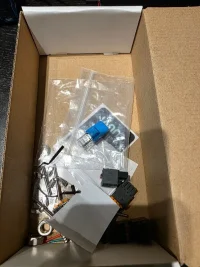
Typically I can’t find those wee blue things. Found absolutely everything else I used when installing the Cerbo but no Cerbo box.
I’ve tried setting the Cerbo as in the videos from victron but it’s still the same.
I think I will need to order those wee blue things and try again
 
Hi Lee,
That’s me trying to sort this out now after it’s finally stopped raining.
I’ve removed the shunt and I’m trying to find the options of shunt/roamer etc in the Cerbo settings but can’t find it.
My Cerbo screen now looks like this.
Any help is appreciated guys
Cheers.
Also found that my EHU is not working. Which means no microwave or my mains charger working.
This will need further investigation
View attachment 316637
Why did you remove the shunt?
 
Typically I can’t find those wee blue things. Found absolutely everything else I used when installing the Cerbo but no Cerbo box.
I’ve tried setting the Cerbo as in the videos from victron but it’s still the same.
I think I will need to order those wee blue things and try again
I'll have a look in my cerbo box when I get home to see if there's a spare in there, you should only need one... I think!
 
I'll have a look in my cerbo box when I get home to see if there's a spare in there, you should only need one... I think!
I don't use a shunt, I just keep a closer eye on my LB voltage. When it gets to 12.8v it's time to use the EHU lead or drive the van!
 
Because Lee said too. Because I got both the shunt and direct cable from my Roamer to the Cerbo.
Lee reckoned that having both was causing the problem
I’m going to have to order those wee blue things I think
But the shunt is far more accurate than the battery BMS. Better off using the shunt and not the direct cable.
 
Back
Top