SMART4 and SMART5 connection with Victron GX devices
Edited 4 months ago
We've made a quick and easy guide to show you how to get your new SMART4 / SMART5 battery connected ot a victron GX device. This includes the Cerbo-GX, Cerbo-GX MK2, Cerbo-S GX, Ekrano GX MultiPlus-II GX and EasySolar-II GX.
SMART4 and SMART5 connection with Victron GX devices
Getting Started
For this guide, you'll simply need:
- Roamer SMART4 / SMART5 battery
- Victron GX Device
- Roamer to Victron GX CANbus cable
- CAN Terminator (these come with your Victron GX device)
- Smartphone with Roamer SMART App
SMART4 and SMART5 connection with Victron GX devices
Battery Connectors:
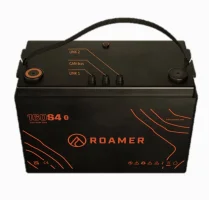
View attachment 316638
From left to right, the connectors on the battery are Link, CANbus and another "Link".
This means that whichever way you are facing the battery, the outer connectors are the Link connections and the inner is the CANbus.
To connect to the GX device, we will use the inner, CANbus connection.
The connectors on the battery are all M12 female threaded. This ensures a secure connection with the cables.
SMART4 and SMART5 connection with Victron GX devices
Connecting Cables:
SMART4 and SMART5 connection with Victron GX devices
Battery End
When connecting any cables to the battery, ensure the battery is first powered off.
Next, take your Roamer to Victron GX CANbus cable, and line up the slot inside the M12 connector with the slot on the connector in the battery, the cable should point towards the middle of the battery.
Push the cable gently down into the connector, and then turn the metal collar clockwise to screw the connector in place - keep pushing gently whislt you do this, as the process of screwing the collar into the connector will pull the connection in, making for a snug fit.
SMART4 and SMART5 connection with Victron GX devices
GX Device End
Take the other end of your Roamer to Victron GX CANbus cable, and plug the "Ethernet" plug into the BMS-CAN port of your GX Device. In the adjacent port, plug ina. CAN terminator.
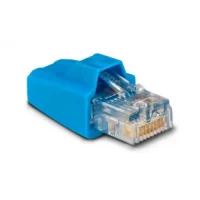
The CAN terminators come with your GX device and look like this:
View attachment 316639
Now turn the Roamer SMART4 / SMART5 battery on via the power switch on the top of the case.
That's it, you're all set up and monitoring your Roamer SMART4 / SMART5 battery via your Victron GX Device!
If you have a GX device without a BMS-CAN port, such as a Cerbo-S GX, you can plug it into a VE.CAN port instead, but you'll need to then change the port function -
see the troubleshooting section in this guide.
SMART4 and SMART5 connection with Victron GX devices
Troubleshooting
SMART4 and SMART5 connection with Victron GX devices
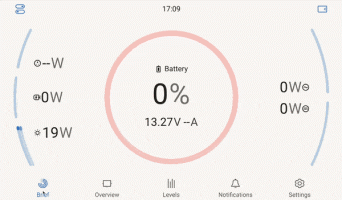
The GX Device doesnt display the Roamer battery data on the main screen
The GX device must have its battery monitor set to "Automatic" for the system to work in a "plug and play" fashion. If this is not set, you can manually set this on the GX Device, with the touchscreen or Remote Console.
Go to
Settings > System setup > Battery monitor and select "Automatic" or the Roamer battery in the list.
View attachment 316640
SMART4 and SMART5 connection with Victron GX devices
My GX Device doesn't have a BMS-CAN port
The Cerbo-GX MK2, Cerbo-S GX, Ekrano GX do not have a dedicated BMS-CAN port.
Instead you will need to use the touchscreen or Remote Console to set one of the VE.Can ports to use BMS-CAN.
Go to
Settings > Services > select the VE.Can port you wish to use
> CAN-bus profile.
Select
"CAN-bus BMS LV (500 kbit/s)".
View attachment 316641
Was this article helpful?